How to Clip on Twitch in 2026: Desktop, Mobile, Hotkey and !clip
How to clip on Twitch on desktop and mobile, clip your own stream with a hotkey or !clip in chat, and edit or delete clips in the Clips Manager.
Quick answer
To clip on Twitch, click the clip icon on the video player of a live stream or past broadcast. Drag the slider to pick up to 60 seconds, add a title and click Publish. On mobile, tap the video, then the Clip button at the top. Your clips live in Creator Dashboard, then Content, then Clips.
Somebody in chat types “CLIP IT” and nobody does. Ten seconds later the moment is gone, and you are scrubbing a three hour VOD after stream trying to find it.
Clipping on Twitch takes about five seconds once you know where the button is. This guide covers every way to do it in 2026: on desktop, on your phone, on your own stream without taking your hands off the game, and how to clean up afterwards.
I build Boltis, a free clipping app for Twitch streamers, so I will point out where it helps. Most of this guide is plain Twitch, though, and you need nothing installed for it.
The short version: click the clip icon on the player, drag the slider to pick up to 60 seconds, add a title and press Publish. On your own stream, use a hotkey, a voice command or a !clip chat command so you never have to alt-tab.
How do you clip on Twitch on desktop?
This works on any channel that allows clips, live or on a past broadcast.
- Hover over the video and click the clip icon in the player controls. The Clip Creator opens as an overlay you can drag around, so the stream keeps playing.
- Drag the slider under the preview to choose the moment. A clip can be up to 60 seconds long.
- Check the crop. Twitch now makes a portrait version of every clip next to the landscape one, with a suggested crop that tries to keep the facecam and gameplay in frame. Accept it, adjust it or dismiss it.
- Give it a title and click Publish. You get a link straight away, and the clip appears in the channel’s clips.
The Clip Creator mutes the stream while it is open, so you hear only the clip. Clips only exist once you press Publish with a title. Twitch changed this to cut down on accidental clips, which is why some channels have noticed fewer viewer clips than they used to.
How do you clip on Twitch mobile?
The Twitch app on iPhone and Android works the same way, with fewer options.
- Tap the video so the controls appear.
- Tap the Clip button at the top of the stream.
- Trim the clip, add a title and publish it.
On mobile you can trim and title a clip. You cannot edit the portrait layout yet, so if the crop is wrong, fix it later from a computer in the Clips Manager.
How do you clip your own stream while you are live?
This is the hard one. When something worth clipping happens, your hands are on the game. Opening the Clip Creator, dragging a slider and typing a title is the last thing you can do mid fight. You have three good options.
1. Say “Twitch, Clip That”
Twitch now listens for the phrase “Twitch, Clip That” during your broadcast. Say it out loud and Twitch creates the clip for you, sends you a notification, and puts the clip in your Clips Manager. It is free, built in, and you never touch the keyboard.
The trade off is that you have to say it on stream, every time, in the middle of the moment.
2. A global hotkey
A hotkey is the fastest option. You press one key and the last 60 seconds are saved, without leaving the game.
Twitch has no global clip hotkey for streamers, so this needs an app. (If you want to record your own PC instead, see the best clipping software for PC.) Boltis registers a hotkey at the Windows level, Ctrl+Alt+H by default, that works while your game is fullscreen. When you press it, Boltis asks Twitch to create the clip through the official clip API. Twitch cuts the clip on its own servers, so nothing is recorded or encoded on your PC and there is no FPS cost. More detail is on the hotkey clipping page.
You can also put the hotkey on a mouse side button or a Stream Deck key if your keyboard hand is busy.
3. A !clip command in chat
Your chat is watching, and they usually know the moment before you do. A !clip chat command lets them save it.
Twitch does not have a !clip command built in. It comes from a tool connected to your chat, such as a chat bot. Boltis adds one without a separate bot account: turn on “Enable !clip in chat” in Settings and choose who can use it (everyone, subs and VIPs, or moderators only). When someone types !clip, Boltis saves the last 60 seconds and can reply with the link. There is a 30 second cooldown so chat cannot spam it. See the !clip command page for the setup.
If your mods are the ones who always catch the moment, set it to moderators only and let them handle it.
| Method | Hands free? | Needs | Best for |
|---|---|---|---|
| Clip icon on the player | No | Nothing | Viewers, or clipping after the fact |
| Twitch mobile app | No | The Twitch app | Viewers on their phone |
| "Twitch, Clip That" | Yes | Your voice, on stream | Streamers who talk a lot anyway |
| Global hotkey (Boltis) | One key | Windows 10 or 11 | Streamers mid game |
| !clip in chat (Boltis or a bot) | Yes | A tool connected to chat | Channels with active mods |
How do you clip someone else’s stream?
You can clip any channel the same way you clip your own, as long as the streamer allows it. Streamers control this in their Clips Settings. They can turn clips off completely, turn them off for a category, or limit clipping to followers of a certain age or to subscribers.
If you clip for other streamers, Boltis has a mode called ClipFor that points the same hotkey at a channel you are watching. The clip is made on their channel through Twitch, and it lands in your Boltis library ready to edit. More on the clip other streamers page.
How do you find, edit and delete your Twitch clips?
Every clip of your channel, and every clip you have made of other channels, lives in the Clips Manager: Creator Dashboard, then Content, then Clips. It has two lists: Clips of My Channel and Clips I’ve Created.
From there you can:
- Search and filter by title, category, who clipped it, date range, or whether it is featured.
- Edit a clip with the scissors icon: change the title, re-trim it, or adjust the portrait layout. Captions can be edited or turned off for 30 days after the clip is made.
- Download the landscape or portrait version.
- Share clips of your own channel directly to YouTube, TikTok, Instagram and Snapchat.
How to delete a clip on Twitch
- Go to Creator Dashboard, then Content, then Clips.
- Find the clip. Use the search box if you have a lot of them.
- Click the delete icon next to it.
To delete clips in bulk, tick the checkboxes in the clip list, or use the three vertical dots menu in the Clips Manager. Streamers can also delete every clip made from one video at once from the moderation options.
A few rules worth knowing:
- You can always delete clips of your own channel, whoever made them.
- You can delete a clip you made of someone else’s channel until the owner edits, features or exports it. After that it is theirs to manage.
- Download before you delete. Save a copy of anything you might want later.
If you have years of clips and cannot find the one you want, the free Twitch Clip Finder searches any channel’s clips by date, and our guide on finding old Twitch clips covers the rest.
Why can’t I clip on Twitch?
If the clip icon is missing or you get an error, it is usually one of these:
- “This channel cannot be clipped.” The streamer has turned off clips for the channel, or for the category they are streaming.
- “You do not have permission to create a clip.” The streamer limits clipping by follow time or to subscribers.
- You are near the start of a VOD. Twitch says clipping the first minute and a half of a past broadcast can fail.
- The channel is offline. You can clip a past broadcast, but a hotkey or !clip command that clips the live stream needs the channel to be live.
- “Something went wrong.” Refresh, turn off browser extensions and try again.
If you are the streamer and nobody can clip you, check your own Clips Settings first.
What should you do with a clip once you have it?
A clip sitting in the Clips Manager does nothing for your channel. The clips that bring new viewers are the ones posted as TikToks and YouTube Shorts.
Twitch now gives you a basic portrait version and direct posting for clips of your channel, which is a good start. If you want more control (a facecam on top, captions you can style, a batch of clips exported in one go), that is what the editor in Boltis is for. The step by step is in our guide to turning Twitch clips into TikToks, and if you would rather use a full editor, see the best Twitch clip editors.
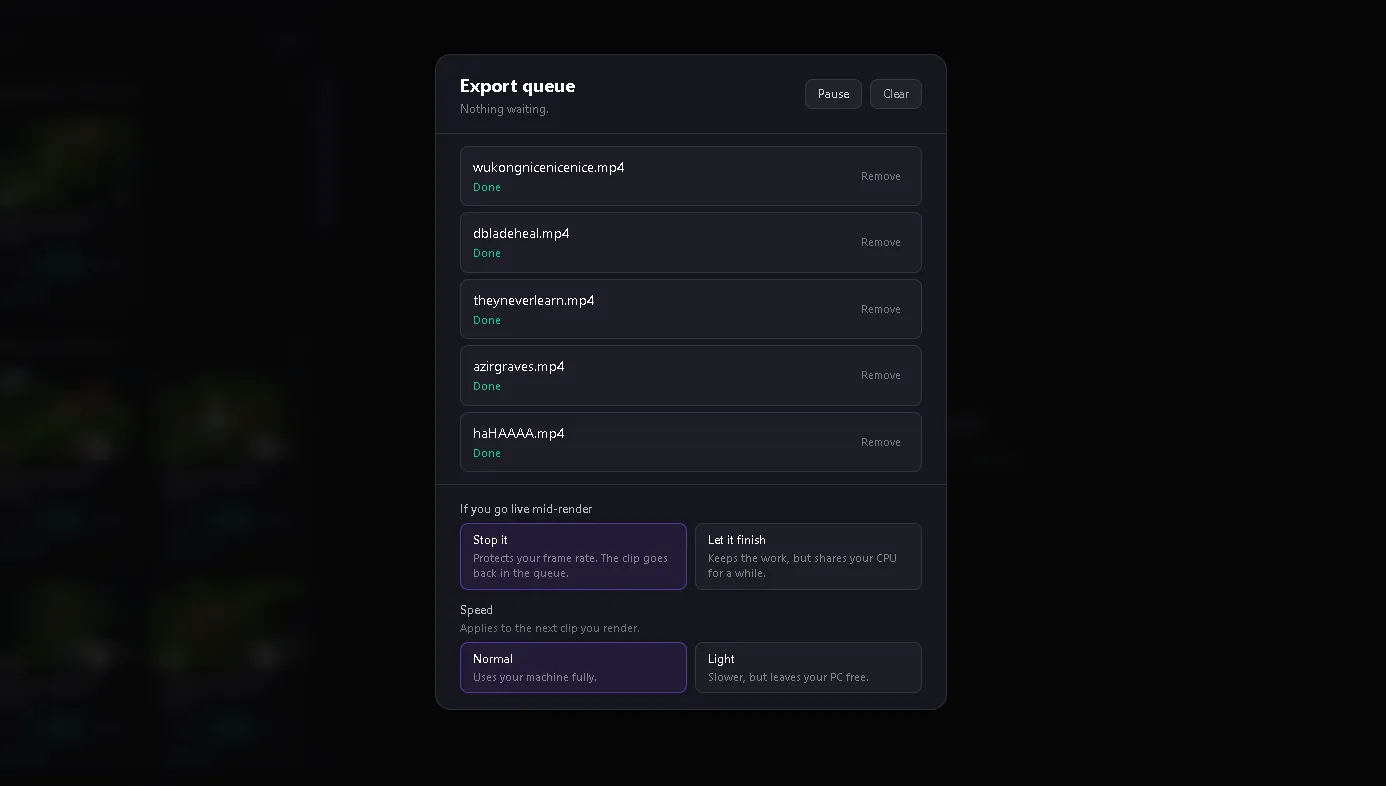 Clips saved with the hotkey or !clip go straight into the Boltis editor, ready to export as vertical Shorts.
If you missed the moment completely, you can still clip it from the VOD: see how to turn a Twitch VOD into clips, and Twitch clip vs VOD if you are not sure which you need.
What are the limits?
To be straight about what each method cannot do:
- Twitch clips max out at 60 seconds. For anything longer, use a Highlight or cut it from the VOD.
- Hotkeys and !clip only capture what just happened. They save the 60 seconds up to the moment you press, never forwards.
- Boltis runs on Windows 10 and 11 only, and it has to be running (it can sit in the system tray) for the hotkey and !clip to work. Viewers need nothing installed.
- Mobile clipping is basic. No portrait layout editing on the phone yet.
So how should you clip on Twitch?
If you are watching, use the clip icon. It is right there on the player, it takes five seconds, and it is free.
If you are streaming, do not rely on remembering to click it. Pick a method that works with your hands on the game: say “Twitch, Clip That”, give your mods !clip, or press a hotkey. Then do something with the clips while the moment is still fresh.
Download Boltis free to clip your stream with one key, let your chat clip with !clip, and turn the results into vertical Shorts. Windows 10 and 11, free exports unlimited, 8 clips a month watermark-free.
FAQ
How do you clip on Twitch?
Click the clip icon on the video player of a live stream or past broadcast. The Clip Creator opens as an overlay. Drag the slider to choose up to 60 seconds, give the clip a title and click Publish. You get a link to share straight away.
How do you clip on Twitch mobile?
Tap the video so the controls appear, then tap the Clip button at the top of the stream. Trim the clip, add a title and publish it. You can trim and title on mobile, but editing the portrait layout is desktop only for now.
How long can a Twitch clip be?
Up to 60 seconds. You set the length with the slider in the Clip Creator before you publish, and you can re-trim it later from the Clips Manager.
How do you clip your own Twitch stream while streaming?
You have three options that keep your hands on the game: say “Twitch, Clip That” out loud, let mods or viewers type !clip in chat with a tool like Boltis, or press a global hotkey. Boltis saves the last 60 seconds with one key and does not record your PC.
How do you delete a clip on Twitch?
Open Creator Dashboard, then Content, then Clips. Find the clip and click the delete icon. To delete several at once, tick the checkboxes in the list or use the three dots menu. Download a clip first if you might want it later.
Can you clip someone else’s Twitch stream?
Yes, as long as the streamer allows it. Streamers can turn clips off, or limit them to followers of a certain age or to subscribers. You can edit or delete a clip you made of another channel until the owner edits, features or exports it.
Why can’t I clip on Twitch?
Usually the streamer has turned clips off for the channel or the category, or limited clipping to followers or subscribers. Clipping the first minute and a half of a past broadcast can also fail. Otherwise, refresh the page and turn off browser extensions.
Is there a !clip command on Twitch?
Not built in. A !clip command comes from a tool connected to your chat. Boltis adds one for free: when an allowed user types !clip, it saves the last 60 seconds through Twitch’s official API and can reply in chat with the link.