Turn a Twitch VOD Into Clips for TikTok & Shorts
Missed the moment live? Turn a Twitch VOD into clips: find the spot with chat activity and game chapters, mark in and out, and export vertical Shorts.
Quick answer
To turn a Twitch VOD into clips, open VOD to clips in Boltis and enter a streamer name or paste the VOD link. Seek to the moment, choose Mark in and Mark out, then Add marked clip. Each clip can be 1 to 120 seconds long. Preview it with your preset and export it as a vertical Short.
You were mid-fight. Chat exploded. You did not press the clip key, because you were busy winning, or busy losing in a way that was very, very funny.
Now the stream is over, the moment exists only in your VOD, and the VOD is four hours long.
This is the one situation where live clipping cannot help you, and I am not going to pretend otherwise. This guide covers how to turn a Twitch VOD into clips: how to find the moment without watching the whole thing, how to cut it out, and how to export it as a vertical TikTok or Short. It works on your own broadcasts and, with permission, on anyone else’s.
The short version: open VOD to clips in Boltis, paste the VOD link, mark in, mark out, export. Free, and no need to be live. (Windows 10 and 11.)
The short facts: Boltis is free. It runs on Windows 10 and 11. Exports are unlimited, and your first 8 clips each month have no watermark. VOD to clips works after the stream has ended, on any public Twitch VOD that still exists.
Why is cutting clips from a VOD so painful?
Because a VOD is the worst possible place to find three seconds.
The usual way goes like this. Download the whole VOD, which can be gigabytes. Open it in an editor. Scrub. Scrub again. Find the moment, realise it was twenty minutes later than you remembered, cut it out, then crop it to 9:16 by hand. By the time it is a Short, the stream was two days ago and you have lost the will to post it.
I lived this. I built Boltis because I was watching my own VODs at 1.5x, audio only, during my 9 to 5, trying to find the bits worth posting. It is the reason the main thing Boltis does is a hotkey: press it while you are live and the clip exists before the moment is even over. You can read the full case for that in how to clip Twitch highlights without scrubbing VODs.
But nobody presses the key every time. So when the moment only exists in the VOD, the job is to make getting it out take minutes, not an evening.
How do you turn a Twitch VOD into clips?
VOD to clips lives in the Clip library, next to Clip Finder. Here is the whole flow:
- Load the recording. Type a streamer name and choose Find VODs to see their past broadcasts, or paste a Twitch VOD link (
twitch.tv/videos/...) and choose Load VOD. - Find the moment. Play or seek the source video. Chat activity and game chapters help, more on those below.
- Mark it. Seek to where the moment starts and choose Mark in. Seek to where it ends and choose Mark out. Then choose Add marked clip. Each clip can be 1 to 120 seconds long.
- Repeat. Every clip you add goes into the Clip queue on the left, with its start and end time. Give each one a title if you like.
- Preview it. Select a clip and choose Preview with preset. The Clip preview shows it in 9:16 with your layout and caption style, before you export anything.
- Export. Choose Export clip to send it to the export queue, or Edit clip to open it in the full editor first.
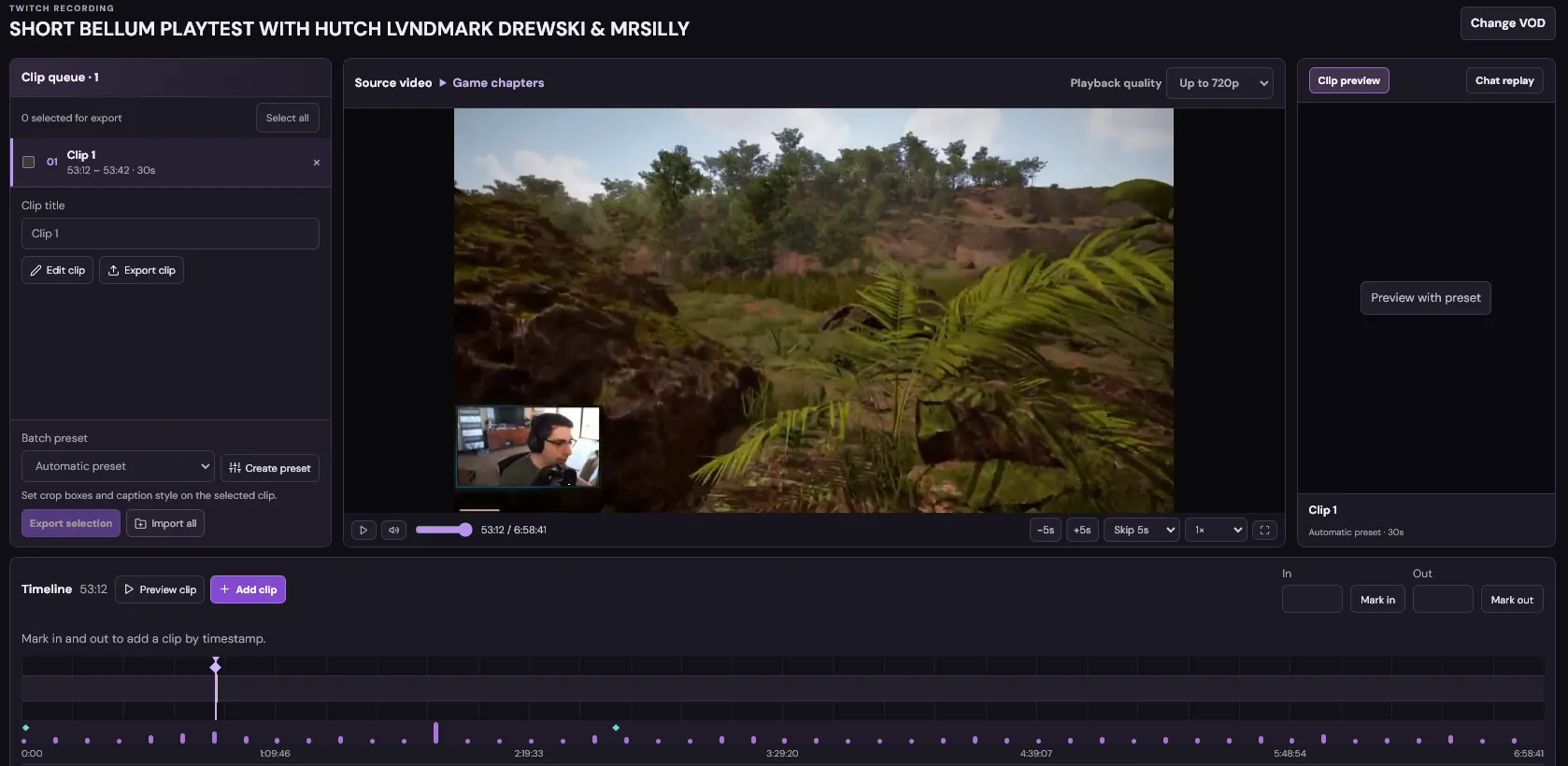
One of shroud’s Bellum playtest VODs in VOD to clips, with a 30 second clip in the queue.
Notice what is missing: you never download the full VOD. Boltis only pulls the range you marked, then formats it like any other clip.
That 120 second limit is worth a second look. A normal Twitch clip stops at 60 seconds, so a long boss fight, a full clutch round or a story that takes a minute to land never fits in one. From a VOD, it does.
How do you find the moment without watching the whole VOD?
This is where VOD to clips earns its place. Two tools stop you scrubbing blind.
Chat activity on the timeline
Switch on Chat activity on timeline and Boltis samples the VOD’s chat across the whole broadcast and draws it under the timeline. The spikes are where chat lost it. Funny moments, clutches and disasters all look the same from here: a burst of messages from a lot of people at once.

The taller purple bars are where chat got busy. The teal markers are game changes. In and Out are set 30 seconds apart.
It is not perfect, and it is not meant to be. A spike can be a raid, a giveaway, or chat arguing about a pineapple pizza. What it gives you is a short list of places to look instead of four hours of footage. You still decide what is worth keeping. That is the difference from an AI clipper: it shows you where chat reacted, it does not pick your moments for you.
Game chapters
If you switched games during the stream, Game chapters lists each one with its start time. Jump straight to the game you want, instead of skipping through an hour of Just Chatting to find the match.
Chat replay
The Chat replay tab, next to Clip preview, plays the VOD’s chat alongside the video. When you seek, chat follows. Use Seek before marker (0, 2, 5 or 10 seconds) so jumping to a spot lands you a little before it, which is usually where the setup is.
Download Boltis free and get your missed moments out of the VOD.
How do you make the clips look right?
Every clip in the queue uses a Batch preset. Leave it on Automatic preset and your default preset applies: layout, crop boxes, caption style, overlays and export settings, the same as a hotkey clip. The Clip preview shows exactly what you will get.
When a clip needs more, choose Edit clip. The editor opens with the VOD’s chat replay beside it, and each message has + Add to clip, which puts that message on the clip as a chat card. For a moment where chat’s reaction is half the joke, that is the edit. Then trim it, cut the dead air, and export as normal. The trim and cut and auto captions pages cover the rest.
On Premium you can also choose Create preset to design a preset just for this recording, with crop boxes set on its own footage. That helps when a VOD has a different camera position or game layout from your usual stream.
How many clips can you make from a VOD for free?
Here is exactly how it works, because it is the one part of VOD to clips that is different from the rest of Boltis:
- On Free, you can export 2 clips from each VOD. Finish your first export from that VOD and a third unlocks.
- Marking and previewing are always free. Add as many clips to the queue as you like and preview them all, then export the best ones.
- Each new clip you export uses one of your 8 watermark-free clips for the month. After that, exports carry a small Boltis watermark.
- Premium removes the per-VOD limit, and adds exporting several selected clips in one go, plus a preset just for that VOD.
Premium is £6.99 a month or £69.90 a year, and every new account starts with 5 days of Premium, no card needed.
Can you clip someone else’s Twitch VOD?
Boltis can open any public Twitch VOD that is still available, so yes, technically. Enter the streamer’s name and their past broadcasts appear.
That is useful for editors cutting Shorts for a streamer they work with, and for duos who want the other side’s view of a shared moment. But being able to open a VOD is not permission to post it. Ask the streamer first, and credit them when you post. If they say no, that is the end of it.
What are the limits?
The honest list:
- Boltis runs on Windows 10 and 11. There is no Mac or Linux build.
- The VOD has to still exist. Twitch deletes past broadcasts after 7 days on most accounts, 14 for Affiliates and 60 for Partners, Prime and Turbo. Once it is gone, so is the moment. Twitch clip vs VOD explains the timings.
- It has to be publicly watchable. Subscriber-only VODs will not load, and if past broadcast storage was off, there is no VOD to open.
- Each clip is 1 to 120 seconds. For a longer piece, cut it into parts.
- Boltis pulls the range from Twitch and renders it on your PC, so it needs your internet connection and a few moments per clip.
- Muted VOD sections stay muted. If Twitch muted part of the VOD for music, the clip from that part is silent too.
Clip it live when you can, rescue it from the VOD when you cannot
VOD to clips is not a replacement for the hotkey. A moment you clip live is saved the instant it happens, never expires with the VOD, and costs you nothing to find later. That is still the best workflow, and how to turn Twitch clips into TikToks walks through it end to end.
But when you missed it, or a mod missed it, or the funniest thing all week happened while you had both hands full, the VOD is your second chance, as long as you use it before Twitch deletes it. If the moment was clipped by someone at the time, Clip Finder is faster still.
Open the VOD, follow the chat spikes, mark in, mark out, export.
Download Boltis free: turn your Twitch VODs into clips before they expire. Free on Windows 10 and 11, unlimited exports, and you pick the moments, not an AI.
Frequently asked questions
How do I turn a Twitch VOD into clips?
Open Clip library in Boltis and choose VOD to clips. Enter a streamer name and pick a past broadcast, or paste a twitch.tv/videos link and choose Load VOD. Then mark the start and end of each moment and export it.
How long can a clip from a VOD be?
Each clip can be 1 to 120 seconds long. That is longer than a normal Twitch clip, which stops at 60 seconds, so a long boss fight or a full round fits in one piece.
Can I clip a VOD after the stream has ended?
Yes. That is the point of VOD to clips. You do not need to be live, but the VOD has to still exist on Twitch and be publicly watchable.
How do I find the best moment in a long VOD?
Turn on Chat activity on timeline, which marks where chat got busy, and use Game chapters to jump to the game you want. You still choose the moment yourself, but you stop scrubbing blind.
Can I clip someone else’s Twitch VOD?
Boltis can open any public VOD that is still available. Ask the streamer before you post their content, and credit them when you do.
Is VOD to clips free?
Yes, with a limit. On Free you can export 2 clips from each VOD, and finishing your first export from that VOD unlocks a third. Marking and previewing are always free, and Premium removes the limit.
Can I add chat messages to a clip from a VOD?
Yes. Open the clip with Edit clip and the editor shows the VOD’s chat replay. Choose + Add to clip on a message and it appears on the clip as a chat card.
What happens when a Twitch VOD expires?
You cannot clip it any more. Twitch deletes past broadcasts after 7 days on most accounts, 14 for Affiliates and 60 for Partners, Prime and Turbo, so clip what you want before then.