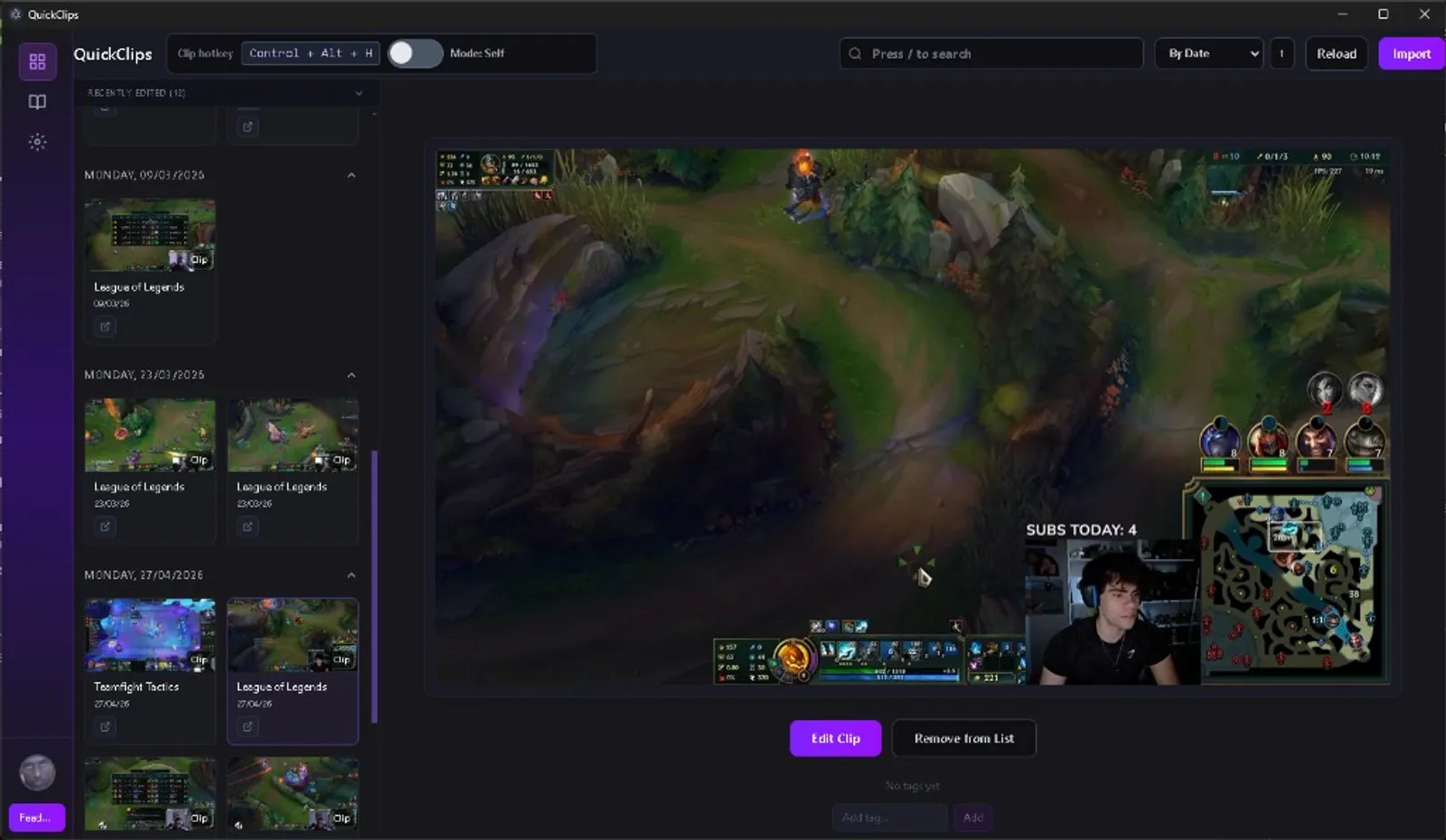
Find Old Twitch Clips and Turn Them Into Shorts
Your best Twitch clips are buried on your Clips page. Find old clips from any channel by date, views or title, then export them as vertical Shorts and TikToks.
Quick answer
To find old Twitch clips, open Clip Finder in Boltis, pick your channel or add any streamer, and sort by Most recent or Most popular. Narrow it by date or Featured only, then search the titles. Choose Edit clip to reframe a clip, or Export to turn it into a vertical Short with your preset.
Go and look at your Twitch Clips page. Not the last week. Scroll back a few months.
There is a clip from the night chat would not stop laughing. There is the clutch your mod clipped while you were still screaming. There is a moment you completely forgot about, sitting there with 400 views, which is 400 more than it would get as a Short you never made.
Most streamers treat old clips as gone. They are not. Twitch keeps them, and they are the easiest Shorts you will ever make, because the moment has already been found for you. This guide covers how to find old Twitch clips, from your own channel or anyone else’s, and turn them into vertical TikToks and Shorts without downloading and re-uploading a single file.
The short version: open Clip Finder in Boltis, sort by Most popular, and export the ones that still hold up. Free, unlimited exports. (Windows 10 and 11.)
The short facts: Boltis is free. It runs on Windows 10 and 11. Exports are unlimited, and your first 8 clips each month have no watermark. Clip Finder does not need you to be live, because it works on clips that already exist.
Why is it so hard to find old Twitch clips?
Because Twitch’s Clips page was built for watching clips, not for working through them.
It shows clips one grid at a time, and the filters are blunt: a time range and a sort. There is no “show me March”, no searching a title you half remember, and no way to go from a clip you like to a vertical export without downloading the MP4, opening an editor, importing it, and cropping it by hand. Do that for ten clips and you have lost the evening.
So the old clips sit there. I know, because I did exactly this. I built Boltis because I was watching my own VODs at 1.5x, audio only, during my 9 to 5, trying to find the bits worth posting. The worst part was realising later that half of those bits had already been clipped by my viewers. I was hunting for moments that were one page away the whole time.
How do you find old Twitch clips with Clip Finder?
Clip Finder lives in the Clip library, next to your Twitch clips and Folders. It takes about a minute:
- Open Clip library and choose Clip Finder. It starts on My channel.
- Pick a sort. Most recent walks back through time. Most popular puts the most viewed clips first.
- Open Filters if you want a window. Set From and Through dates (they are in UTC), or tick Featured only to see just the clips the channel has featured on Twitch.
- Search what is loaded. The search box matches clip titles and the name of whoever clipped it. Clips load 24 at a time, and Show more clips loads the next page.
- Pick a clip. Each card shows its length, view count and date. Choose Edit clip to open it in the editor, or Export to send it straight to the export queue.
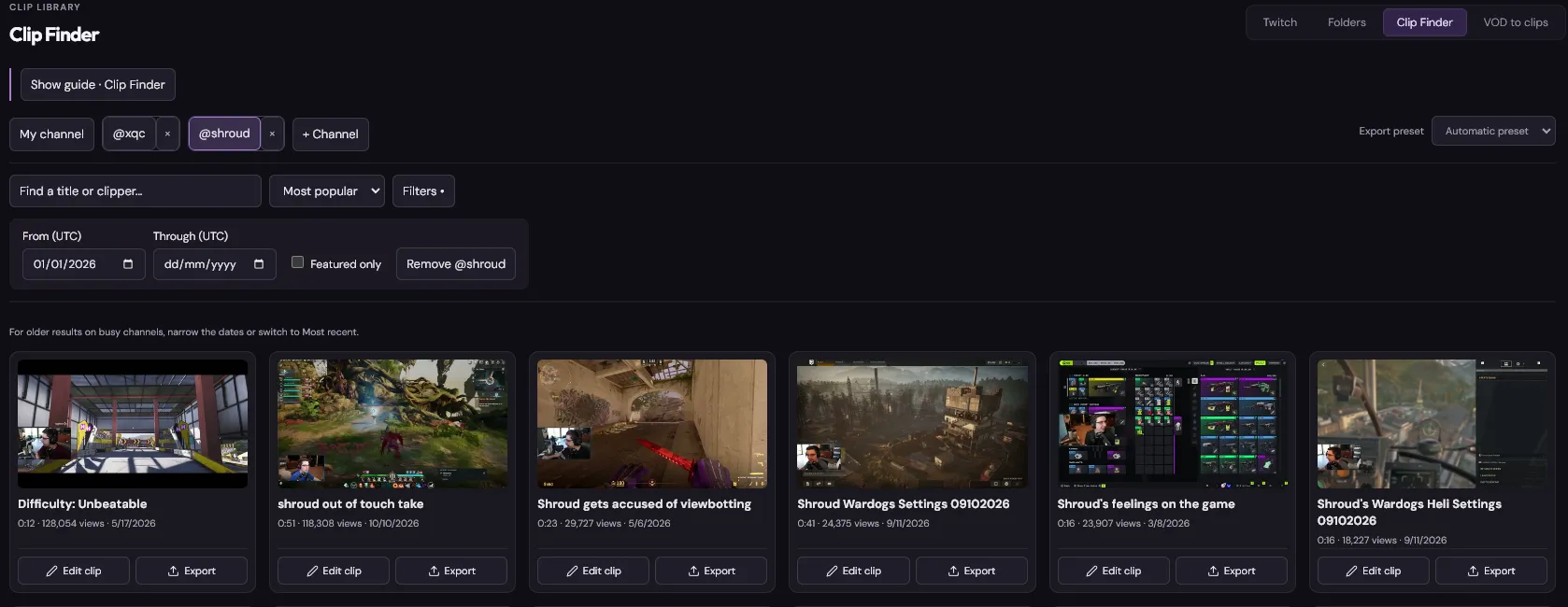
Clip Finder on shroud’s channel: Most popular, filtered to 2026. Every card has Edit clip and Export.
That is it. No downloads, no imports, no tab with twenty Twitch clip URLs in it.
Worth knowing: Clip Finder reads clips through your Twitch connection, so connect your Twitch account in Boltis first. It does not need you to be live.
Which old clips are actually worth posting?
Not all of them. A clip that killed in chat at the time can be dead weight as a Short, because the viewer on TikTok was not there.
Sort by Most popular first, then ask one question about each clip: does this make sense to someone who has never seen my stream? The ones that pass usually have:
- A clear setup and payoff inside the clip, not ten minutes earlier.
- A reaction you can hear, which captions turn into something people read on mute.
- One thing happening, so a 9:16 crop does not lose the point.
The ones that fail are mostly in-jokes. They still matter to your community. They just are not your best Shorts.
Then switch to Most recent with a date range and look at the gaps, the weeks where nothing got posted. That is usually where the forgotten gold is.
How do you turn an old Twitch clip into a Short?
You have two routes, and the right one depends on how much the clip needs.
Export it as it is, with a preset
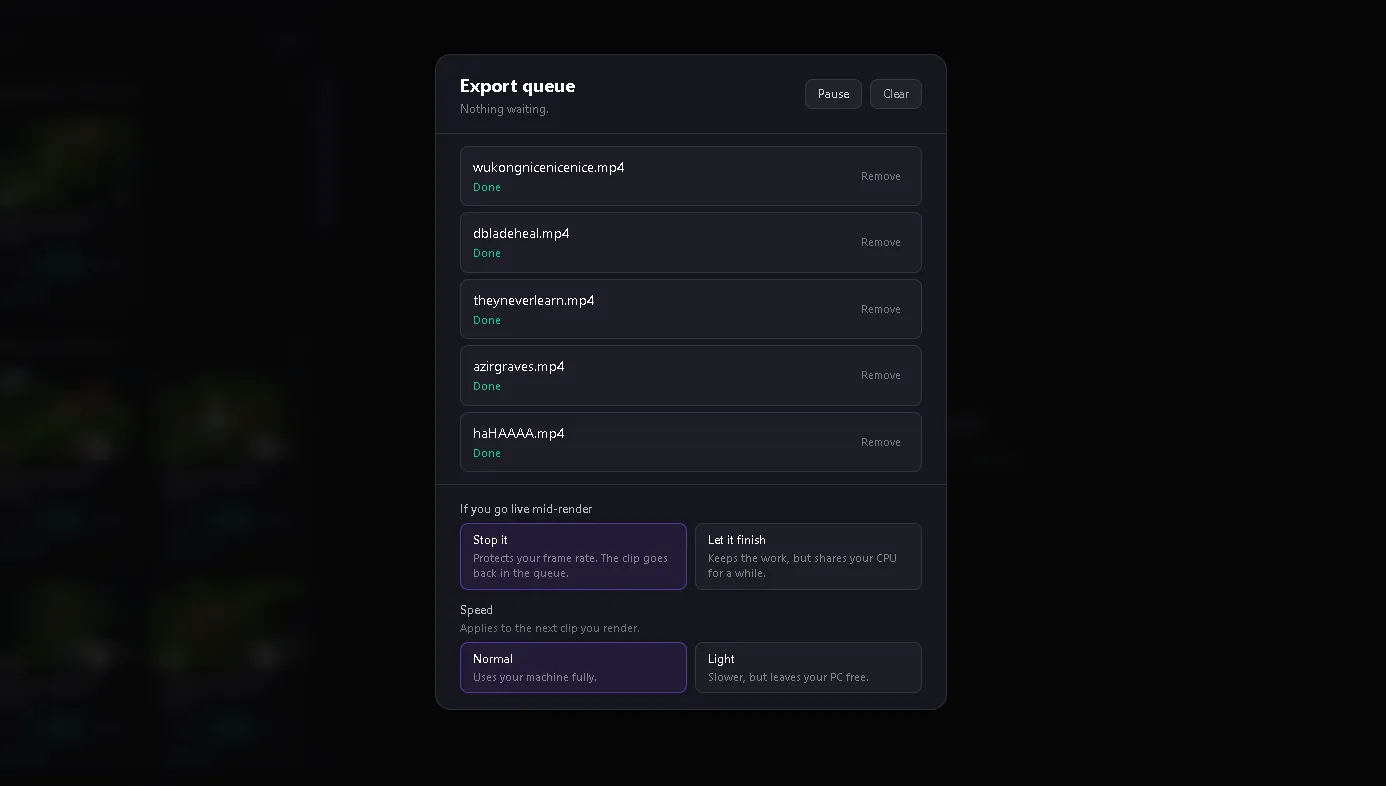
If the clip is already good, pick an Export preset at the top of Clip Finder and choose Export on the card. The clip is formatted with that preset’s layout, caption style, overlays and export settings, then queued to render in the background. Leave it on Automatic preset and Boltis uses your default.
This is the fast lane for a backlog. You can work through a page of old clips in a few minutes, as long as each one is good from start to finish. A preset cannot cut dead air out of the middle, so a clip that drags needs the other route.
Open it in the editor
Choose Edit clip when the clip needs trimming, a different layout, or overlays timed to a moment. You get the full editor: vertical layouts (split, fullscreen or blurred), auto captions, trims and cuts, and overlays.
There is one bonus here that I did not expect to use as much as I do. If the clip’s VOD still exists on Twitch, the editor opens with that stream’s chat replay, and each message has + Add to clip, which drops the message onto the clip as a chat card. For a clip where chat’s reaction is the joke, that is the whole edit.
The reason this works is that you are not guessing. The clip is already the moment. Someone, maybe you, maybe a mod, maybe a viewer, already decided it was worth keeping. That is a better filter than any AI highlight detector, because a real person pressed the button.
Download Boltis free and turn your old clips into Shorts.
Can you find clips from other streamers’ channels?
Yes. Choose + Channel and type a Twitch username or paste their channel URL. The channel is saved as a tab next to My channel, so you can flip between them, and the cross removes it again.
This is useful in a few honest ways:
- Editors and mods working on a streamer’s Shorts can pull that channel’s clips without being handed a list of links.
- Duos and collabs can grab the other side’s clip of a shared moment.
- Research. Sorting a bigger streamer in your game by Most popular shows you which moments their audience actually rewards.
One line on manners, because it matters: finding a clip is not the same as having permission to post it. If it is someone else’s stream, ask, and credit them when you post. Clipping is a normal Twitch feature. Reposting another streamer’s content as your own is not.
If you want to clip another streamer while they are live, that is a different feature: clipping other streamers covers it.
Is there a free Twitch clip finder without installing anything?
Yes. The free Twitch clip finder on boltis.app needs no account. Type a channel, pick a range (24 hours, 7 days, 30 days or all time), and it lists the 20 most viewed public clips, each with a Download MP4 button.
The honest difference:
| What you need | Free web clip finder | Clip Finder in Boltis |
|---|---|---|
| Install or account | None | Boltis on Windows 10 or 11, Twitch connected |
| Clips shown | Top 20 by views | 24 at a time, as far back as you scroll |
| Sort | Most viewed | Most recent or Most popular |
| Date filter | 24 hours, 7 days, 30 days, all time | Any From and Through dates |
| Title search | No | Yes, on loaded clips |
| Turn into a Short | Download, then edit elsewhere | Edit clip or Export with a preset |
If you only want one MP4, use the web tool. If you want to work through a backlog, use the app.
What are the limits?
Straight answers, so nobody downloads the wrong thing:
- Boltis runs on Windows 10 and 11. There is no Mac or Linux build.
- Clip Finder needs your Twitch account connected in Boltis.
- It only finds clips that still exist. Deleted clips, and clips on channels that have turned clipping off, do not show up.
- Dates are in UTC, so a late-night stream can land on the next day.
- Search only covers clips already loaded. Load more pages to search further back.
- On Free, each export counts as one of your 8 a month, and the queue holds 2 clips at a time. Premium removes both limits.
- A clip is still at most 60 seconds, because that is the longest clip Twitch makes. For a moment nobody clipped, see how to turn a Twitch VOD into clips.
The backlog is the easiest content you have
Every streamer who has been live for a few months is sitting on a pile of finished moments. They were clipped by you, your mods and your viewers, they are already the right length, and nobody has posted them.
You do not need to find new moments to post more Shorts this week. You need to find the old ones. For the full workflow from clip to posted Short, start with how to turn Twitch clips into TikToks. For the difference between clips and VODs, and which one disappears, read Twitch clip vs VOD.
Open Clip Finder, sort by Most popular, and export the three that still make you laugh.
Download Boltis free: find your old clips and post them as Shorts. Free on Windows 10 and 11, unlimited exports, and you pick the moments, not an AI.
Frequently asked questions
How do I find old Twitch clips from my channel?
Open Clip library in Boltis, choose Clip Finder, and leave it on My channel. Sort by Most recent or Most popular, and use Filters to pick a date range in UTC.
Can I find clips from another streamer’s channel?
Yes. Choose + Channel and type their Twitch username or paste their channel URL. Boltis saves the channel as a tab so you can come back to it, and you can remove it with the cross.
How do I see the most popular clips on a Twitch channel?
Set the sort to Most popular. Twitch ranks those results by views. On busy channels, narrow the dates to reach older clips, or switch back to Most recent.
Can I search Twitch clips by title?
Yes. The search box filters the clips already loaded by title or by the name of the person who clipped it. If the clip is not there yet, choose Show more clips and search again.
Do I need to be live to use Clip Finder?
No. Clip Finder works on clips that already exist, so you can use it any time. You do need to connect your Twitch account in Boltis.
Do clips exported from Clip Finder count toward my free exports?
Yes. Exports are unlimited, with captions, and each different clip you export uses one of your 8 watermark-free clips for the month. After that, new clips carry a small Boltis watermark. Premium removes it.
Can I find Twitch clips without installing anything?
Yes. The free Twitch clip finder at boltis.app/tools/ lists the 20 most viewed public clips for any channel and lets you download the MP4. The desktop Clip Finder goes further back and turns clips into Shorts.
Is Boltis free?
Yes. Clipping and the editor are free forever, and free exports are unlimited, with 8 clips a month watermark-free. Boltis runs on Windows 10 and 11.