Best Twitch Clip Editor: What Streamers Actually Use in 2026
A verified comparison of the editors streamers use on Twitch clips in 2026: DaVinci Resolve, CapCut, Premiere Pro and Boltis, with prices, watermark rules and who each one is actually for.
Quick answer
There is no single best Twitch clip editor, there is a best one for the job. For full edits with no budget, DaVinci Resolve's free version is the strongest, with no watermark and no time limit. For quick phone edits, CapCut is free for manual edits. For turning Twitch clips into vertical posts without downloading and re-importing them, Boltis edits the clip where it was made, on Windows, free, with no watermark.
Here is the part nobody puts in the tutorial. The clip already exists. Twitch made it the moment you pressed the button. It is sitting in your Clips page in perfect quality, thirty seconds of the best thing that happened all week.
Then you download it. Then you open a folder. Then you open an editor. Then you import it. Then you crop it to vertical, guess where your facecam should go, type the captions, export it, find the file again, and put it on your phone.
That is the round trip. Every editor on this page except one asks you to make it, and it is the single biggest reason clips sit unposted. So this comparison is organised around one question: does the tool go to the clip, or does the clip have to come to the tool?
What makes a good Twitch clip editor
Before the list, the criteria. A Twitch clip is not a video project. It is short, it is already shot, it is vertical-bound, and it is worthless in a week. So the things that matter are not the things editor reviews usually measure.
- How the clip gets in. Downloading and importing is the step people quit at. An editor that reads your Twitch clips directly removes it entirely.
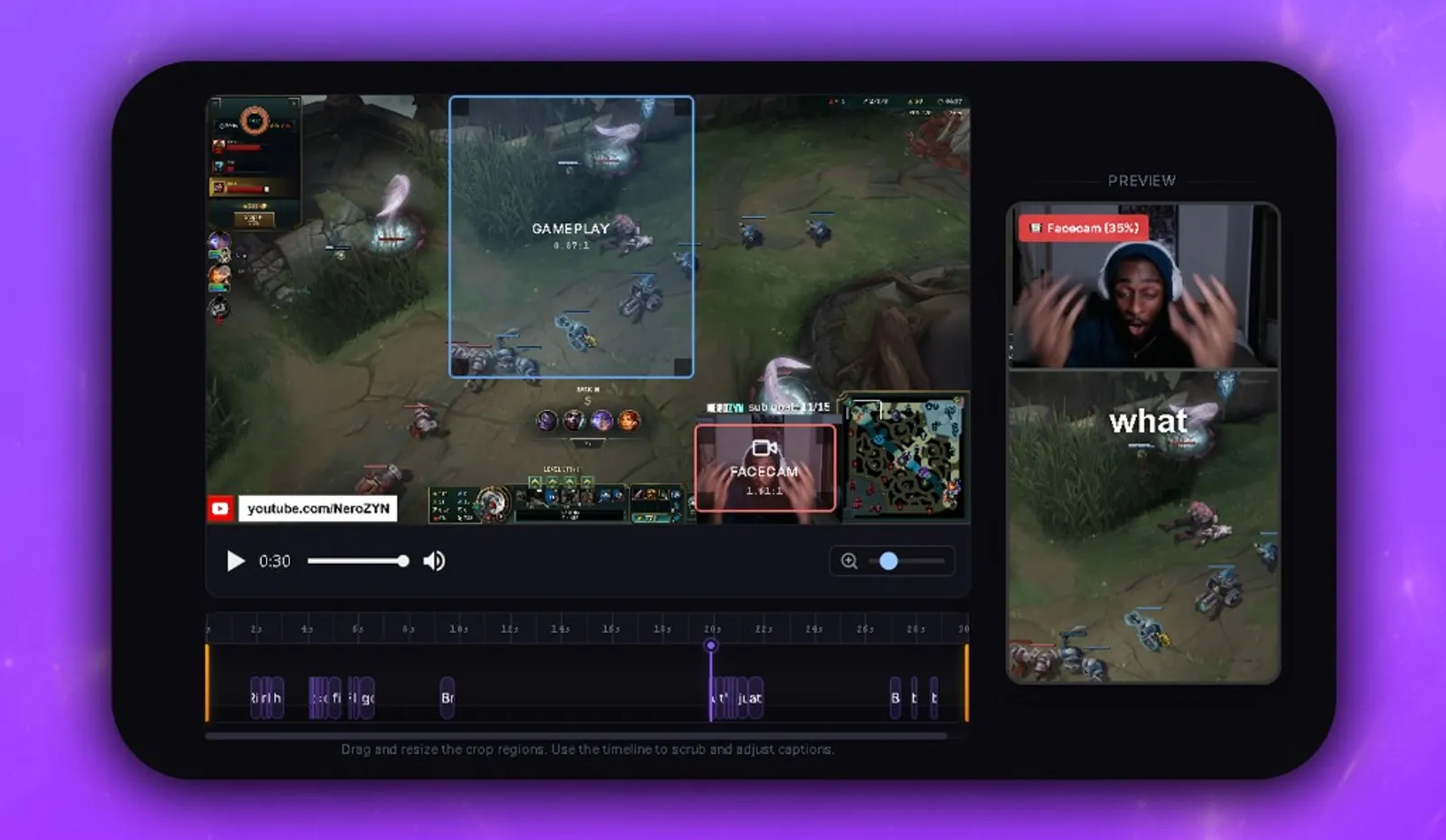
- Vertical reframing. 16:9 gameplay has to become 9:16 without losing the play or your face. Split layouts, blurred backgrounds and facecam boxes are the whole job.
- Captions. Most feeds play muted. Auto captions that are actually timed to the words are the difference between a clip that lands and one that scrolls past.
- Watermarks. Some free tiers brand your export. Check this before you build a habit on a tool.
- Speed to post. Time from moment to posted clip. If it is thirty minutes, you will do it once.
- Learning curve. A colour grading suite is not a faster way to crop a 30 second clip.
Which full editors do streamers use?
These are real editors. They will do anything you ask, including things a Twitch clip does not need. Use them for montages, YouTube videos and anything with structure.
DaVinci Resolve
The strongest free editor there is, and it is not close. The free version has no watermark, no time limit and exports up to 4K at 60fps. Studio is a one-off $295, not a subscription, and it mostly buys AI tools, higher resolutions and faster renders that a clip will never need.
The catch is what you would expect: it is a professional post-production suite with editing, colour, Fusion effects and Fairlight audio, and it has the learning curve to match. It has no idea Twitch exists, so every clip starts with a download.
CapCut
The one most streamers already have. Free to use, strong at fast vertical edits, good auto captions, and the template library that shaped how Shorts look.
On the watermark, which is worth getting right because the rules change: CapCut’s own help pages say that when you edit manually, adding your own clips, music, text and effects, you can export without a watermark. Watermarks come from the Pro-locked side of the app, certain templates, premium effects and stock elements, and from the auto-generated ending clip, which you can delete before exporting. Paid plans exist above the free tier, priced by region rather than published as one global number, and reported in 2026 at roughly $10 a month for the mid tier and $20 for Pro, which adds 4K, the full AI toolkit and cloud storage.
It is a general creator tool. Nothing in it knows what a facecam is or where your Twitch clips live.
Adobe Premiere Pro
The industry default, and the most expensive way to crop a clip. A single-app subscription runs about $22.99 a month on an annual plan paid monthly, or $34.49 if you want to pay month to month and cancel freely. It is worth it if editing is part of your income. For clips alone it is hard to justify, and like the others it has no Twitch connection.
Which clip-to-short tools do streamers use?
Different category, different job. These exist to turn a clip into a postable vertical video, and nothing else.
Most of them are web apps: you upload or paste a clip link, they reframe it, and you download the result. We have written head-to-head comparisons of the main ones if you want the detail: Boltis vs Eklipse, vs StreamLadder, vs OpusClip, vs Crossclip, vs StreamGen and vs NexusClips.
Boltis
Boltis is the one that removes the round trip. It runs on your PC, signs in to your Twitch account, and edits the clips already in your library. Nothing is downloaded and re-imported, because the clip never leaves.
The capture side is a hotkey. Press it while you are live and Twitch saves the last 60 seconds through its official clip API. There is no screen recording involved, so there is no FPS cost, and the clip exists the moment you press it rather than being carved out of a VOD later. Viewers and mods can trigger clips from chat with !clip, and you can clip other streamers’ channels while they are live.
The editing side is built for the one format: split, fullscreen and blurred vertical layouts with a draggable facecam box, AI captions with eight styles and editable timing, trims and cuts, overlays, sound effects and censoring. Exports go out at 1080x1920, up to 60fps, with no watermark on any plan, free or paid. Finished renders run in a background queue that pauses itself while you are live, so rendering never competes with your stream.
Free covers clipping, editing and export permanently, including 30 AI caption jobs a month and one saved preset. Premium is £6.99 a month or £69.90 a year and is mostly about automation: presets per game that apply themselves, extra hotkeys that clip and caption and queue the export in one press, unlimited captions and library tools.
Twitch clip editor comparison
| Editor | Price | Platform | Edits Twitch clips directly | Vertical and facecam layouts | Captions | Watermark on free tier | Learning curve |
|---|---|---|---|---|---|---|---|
| Boltis | Free, Premium £6.99/mo or £69.90/yr | Windows 10 and 11 | Yes, from your Twitch account | Yes, built for it | Yes, 30/mo free, unlimited on Premium | No, never | Low |
| DaVinci Resolve | Free, Studio $295 once | Windows, macOS, Linux | No, download first | Manual, you build them | Yes, built in | No | High |
| CapCut | Free, paid tiers vary by region | Windows, macOS, iOS, Android, web | No, download first | Manual, template driven | Yes, auto captions | Only from Pro templates, effects and the ending clip | Low to medium |
| Premiere Pro | About $22.99/mo annual, $34.49/mo monthly | Windows, macOS | No, download first | Manual, you build them | Yes, built in | No free tier, 7 day trial | High |
Prices checked September 2026. CapCut’s tiers are priced per region and change often, so treat the figures above as the reported range rather than a quote.
Where Boltis is the wrong answer
Worth saying plainly, because a comparison that only flatters one side is not a comparison.
- It is not as powerful as DaVinci Resolve or Premiere Pro, and it is not trying to be. There is no colour grading, no multicam, no motion graphics. If you are cutting a 20 minute YouTube video or a montage with structure, use a real timeline editor.
- Windows only. Windows 10 and 11. There is no macOS or Linux build, and no web version.
- You have to be live to clip your own channel. Twitch only makes clips from a live broadcast. Afterwards you can still edit anything already in your library, import older clips and clip other channels while they are live, but the hotkey itself is a live tool.
- It is a desktop app. If you edit on your phone, CapCut fits your hands better.
Which one should you use?
You stream and you want clips posted the same night. Boltis. The whole point is that the clip is already on Twitch and does not need to travel. Set one preset for your main game and clips come out ready.
You make long-form YouTube videos as well as clips. DaVinci Resolve for the videos, plus something fast for the clips. Resolve free is genuinely free and will outlast any subscription.
You edit on your phone, in bed, after the stream. CapCut. Keep your own footage and assets in the project and your exports stay clean.
You edit professionally or work with clients. Premiere Pro, because the ecosystem and the handoff matter more than the monthly cost.
You are brand new and have no budget at all. Start with CapCut on your phone. When you notice you are spending more time moving files around than editing, you have found the problem this whole page is about.
FAQ
What is the best free Twitch clip editor?
For full timeline editing, DaVinci Resolve’s free version is the strongest free option: no watermark, no time limit, and 4K export. For turning Twitch clips into vertical posts, Boltis is free on Windows and does not add a watermark, with 30 AI caption jobs a month on the free plan. CapCut is free too, though it is a general editor rather than a Twitch one, and premium templates and effects add a watermark unless you pay.
Can you edit Twitch clips without downloading them?
Yes, if the editor talks to Twitch directly. Boltis pulls your clips from your Twitch account, so you edit and export without downloading an MP4 and importing it into a separate program. Desktop editors like DaVinci Resolve, Premiere Pro and CapCut have no Twitch connection, so with those you download the clip first.
What video editing software do Twitch streamers use?
Most streamers use one of three things. CapCut for fast vertical edits with captions, DaVinci Resolve or Premiere Pro for proper YouTube videos and montages, and a clip-to-short tool for the everyday job of turning a Twitch clip into a TikTok or Short. Many use two: one heavy editor for long content and one fast tool for clips.
Does clipping affect stream FPS?
It depends how the clip is made. Local screen recorders cost you frames because your machine encodes a second video while it renders the game. Boltis does not record your screen: the clip is created by Twitch through its official clip API, so there is no FPS cost.
Do I have to be live to clip my own stream?
Yes. Twitch only creates a clip from a live broadcast, so the hotkey works while you are streaming. Afterwards you can still edit any clip already in your library, import older Twitch clips, and clip other streamers’ channels while they are live.
The thing that actually changes your output
Pick whichever editor suits the job. But if clips are the job, the win is not the editor, it is the preset.
Decide once what your clips look like: gameplay on top, facecam bottom left, your caption style, your font, your export folder. Save it. After that a clip is not a project you sit down to. It is a hotkey press while you are live and a finished vertical video waiting when you get up.
That is the difference between streamers who post clips and streamers who have four hundred clips they have never opened.