Twitch Download: How to Save Your Clips and VODs the Easy Way
Twitch download done right: how to download your Twitch clips and VODs the official way, plus the faster clip-first route to TikToks and Shorts. Free, no watermark.
Quick answer
To download your own Twitch VOD, use Creator Dashboard's Video Producer while the broadcast is in its retention window. But if you only want one moment for TikTok or Shorts, downloading the full VOD is the slow route. Boltis saves the last 60 seconds instantly through Twitch's clip API when you press a hotkey, free forever, no watermark.
Let’s be honest about why you’re here. Nine times out of ten you don’t actually want to download a Twitch VOD. You want one moment from it. The clutch, the fail, the thing chat lost their minds over. The full broadcast is just the giant haystack you have to dig through to get it.
So this guide does two things. It covers the proper, official way to download your Twitch clips and VODs when you genuinely need the whole file for archiving or a long edit. And then it shows you the faster route most streamers actually want, which is to skip the download-and-scrub ritual entirely and keep the moment the second it happens.
The quick answer: pick the right Twitch download method
Before you download anything, decide what you actually need. Are you backing up a broadcast, saving a single clip, or turning a live moment into vertical content? They are not the same job.
| Goal | Easiest route | Best for | Watch out for |
|---|---|---|---|
| Save your own full stream | Download the VOD from your Creator Dashboard | Archiving, long-form editing, YouTube uploads | VODs expire if past broadcast storage is off or retention runs out |
| Save a clip from your channel | Use Twitch’s clip management in Creator Dashboard | Reposting your own channel moments | The interface changes, so check your Clips area first |
| Turn stream moments into Shorts | Capture clips live with a hotkey, then export vertically | TikTok, YouTube Shorts, Instagram Reels | You (or a mod) have to catch the moment while live |
| Use someone else’s content | Get permission first, then a lawful method | Collaboration, editor handoffs, authorised reuse | Copyright, music rights, and creator permission all apply |
A good Twitch download workflow is not just about getting a file. It is about getting the right file, in the right format, without losing an evening to scrubbing.
The fast version: if your goal is short-form content, you don’t need to download anything. Boltis saves your last 60 seconds the instant you hit
Ctrl + Alt + H, then exports it vertical for TikTok and Shorts. Free, no watermark. (Windows 10/11, and you need to be live on Twitch. More on that below.)
What Permissions Do You Need First?
If the clip or VOD is yours, you’re clear. You manage your own broadcasts and clips from your Twitch account, within Twitch’s storage and retention rules.
If it belongs to someone else, “public” does not mean “free to reuse.” A streamer’s gameplay, camera, commentary, overlays, and chat can all be part of their work, and music piles on another layer of rights risk. If you’re editing for a creator, get explicit permission and agree how the clip gets used before you touch it. This one is not worth the strike.
One more thing worth knowing: Twitch VODs are not stored forever. Past broadcasts have to be enabled before you stream, and how long they stick around depends on your account type and Twitch’s current rules. Twitch lays this out on its Video on Demand help page, so check it if you’re leaning on VODs as your archive.
How Do You Download Your Own Twitch VOD?
For your own channel, the official route through Twitch is the safest one. Use a desktop browser, not the mobile app, especially for longer files.
- Enable past broadcasts before you stream. Open your Creator Dashboard, go to your stream settings, and switch on past broadcast storage. If it’s off, there’s no VOD to download later. This is the step everyone forgets until it’s too late.
- Let the stream finish processing. After you end, Twitch needs a bit of time before every option shows up.
- Open Video Producer. In Creator Dashboard, go to Content, then Video Producer. That’s where your broadcasts, highlights, and uploads live.
- Find the VOD and download it. Select the broadcast and use the actions menu. If it’s still inside its retention window, you’ll get a download option.
- Store it somewhere sane. Full VODs are big. Use dated folders with the game and stream title so future-you can actually find the footage.
This is the right call for long-form backups, because you’re using the platform’s own flow. It’s also what you want if you’re cutting a full YouTube video or keeping a local archive of a big stream.
The catch is time. A three-hour VOD takes a while to download, move, import, and then scrub through. If all you wanted was a 30-second moment, downloading the entire broadcast is the slowest possible way to get it.
How Do You Download Twitch Clips?
Clips are small, easy to share, and far better suited to short-form. If the clip is from your channel, start inside Twitch’s clip management area, generally under Content and Clips in Creator Dashboard. If Twitch shows a direct download option, use it. That keeps things simple and keeps you away from random downloader sites.
Third-party clip downloaders do exist, and some are harmless. Plenty are not: ads, forced watermarks, misleading download buttons, sketchy browser permissions. Never put your Twitch password into one of them to save a public clip, and don’t install something that trips your antivirus just to grab a 20-second clip. For a public clip you have permission to use, our free Twitch clip & VOD downloader resolves a link and gives you a direct MP4, no account required.
For your own stream moments, though, the smarter move usually isn’t downloading at all. It’s catching the clip when it happens.
Why Clip While You’re Live Instead of Downloading?
Here’s the thing I learned the hard way. Before Boltis existed, I was the streamer watching my own VODs back at 1.5x, audio only, during my 9-to-5, rewinding every time I heard myself laugh so I could note a timestamp and clip it “later.” That’s hours of your life spent re-watching a stream you already lived through, just to find moments you already remembered.
That backwards ritual is the whole reason Boltis exists. You already know the moment when it happens. You don’t need to download the haystack and search it later, and you definitely don’t need an AI guessing at your highlights after the fact and handing you the dead air right before the play. You press one key while you’re live and the moment is kept.
That key is Ctrl + Alt + H by default, and it saves your last 60 seconds as a proper Twitch clip the instant you tap it.
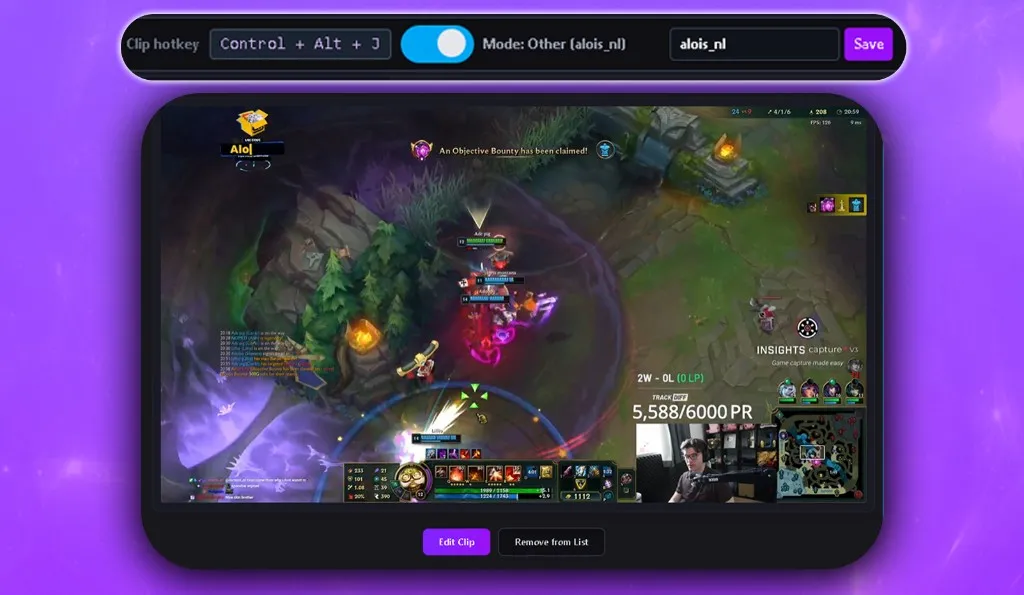
A few things that matter for streamers specifically:
- It doesn’t record your screen. Boltis uses Twitch’s official clip API to save the moment server-side, so there’s no second recorder running and no FPS hit. If you play FPS games or stream from a single PC, that’s the difference between clipping freely and clipping nervously.
- Core clipping is free forever, with no watermark and no ads. Your clip is yours to post clean.
- It’s built for vertical. Split or fullscreen layout, AI captions, and a 9:16 export ready for TikTok, Shorts, and Reels.
- Your mods can clip too, which helps when you’re busy actually playing and reading chat.
Here’s an example caught and edited entirely this way, no watermark on it:
The honest tradeoffs, because hiding them just causes refunds and churn: Boltis is Windows 10/11 only, and because it clips through Twitch’s API, you have to be live on Twitch when you press the key. It won’t pull a moment out of yesterday’s VOD. Being indie software, Windows may also throw a SmartScreen warning on install, and there’s a short guide for clicking through that. If you stream on Twitch and want clean clips fast for free, that’s an easy trade. If you need to clip pre-recorded uploads or you’re on Mac, the VOD route above is your friend.
If scrubbing footage after stream is your real pain, the deeper walkthrough is here: clip Twitch highlights without scrubbing VODs.
Full VOD download vs clip-first workflow
Neither is “better” in the abstract. It depends on whether you’re archiving, editing long-form, or publishing Shorts quickly.
| Workflow | Strengths | Weaknesses | Best fit |
|---|---|---|---|
| Full VOD download | Complete record of the stream, good for long edits | Large files, slow downloads, lots of scrubbing | YouTube videos, archives, editor handoff |
| Twitch highlights | Good for saving longer segments inside Twitch | Still means reviewing the VOD | Compilations, stream recaps |
| Clip-first workflow | Fast, focused, easy for Shorts | You or a mod must catch moments live | TikTok, Shorts, Reels, daily posting |
| Random downloader site | Can be quick for one public clip | Trust, quality, ads, permissions, reliability | Only with permission and a tool you trust |
If you post regularly, clip-first usually wins. It shrinks how much footage you ever touch and turns your editing session into choosing the best moments instead of hunting for them.
How Do You Make Clips Easier to Edit and Post?
A download is only worth it if the final video actually works where you post it. A wide gameplay clip can die on a phone screen if the action is tiny, the facecam is cropped badly, or the text is unreadable.
For TikTok, Shorts, and Reels, think 9:16 from the start, and make the payoff land in the first second or two. If a viewer needs 15 seconds of setup before anything happens, trim harder or add a caption that frames it fast.
Add captions even when the audio’s good, because a lot of people watch muted, and captions carry the joke or the callout. If you’re repurposing often, a workflow with built-in AI captions saves a pile of repetitive editing. The full conversion process is here: turn Twitch clips into TikToks.
Layout matters too. Split view works when both the gameplay and your reaction matter. Fullscreen is stronger for aim, clutches, racing lines, anything where the visual detail is the moment. And watch for watermarks: some free editors brand your export, which makes it look less native on TikTok. If clean exports matter to you, a free Twitch clip editor with no watermark beats running a clip through a generic editor that stamps its logo on your work.
What Should You Check Before Using a Twitch Downloader?
Sometimes you’ll still need a downloader, usually a one-off public clip you have permission to use and no official option for. If so, treat it like any other software handling media from the web:
- Don’t use anything that wants your Twitch password to download a public clip.
- Avoid installers that trip antivirus warnings or bundle unrelated software.
- Check whether the export carries a watermark, a quality cap, or forced branding.
- Confirm you have permission to reuse the clip, especially for another creator’s content.
- Steer clear of tools claiming to grab private, deleted, or restricted content.
- Prefer anything that uses official platform features or APIs.
The safe long-term answer is to own your workflow: Twitch’s official VOD download for full archives, a purpose-built clip workflow for the highlights you actually post.
A simple workflow for streamers who post Shorts
If you stream regularly and want more content without more editing stress, keep it simple:
- Enable VOD storage before you go live. Your safety net if you ever need the full broadcast.
- Capture moments live. Use a hotkey so the best plays, fails, and reactions are saved the second they happen.
- After stream, review the clips, not the whole VOD. Start from the moments you already know are good.
- Edit vertical first. Pick a layout, add captions, trim dead air, keep the payoff obvious.
- Export clean and post consistently. A watermark-free clip out today beats a perfect edit posted next week.
Best of both worlds: you can still download the full VOD when you need it, but your daily content engine isn’t held hostage by huge files and long editing sessions.
Frequently Asked Questions
Can I download someone else’s Twitch VOD? Not by default. Get permission from the creator before downloading, editing, or reposting. Public access doesn’t grant reuse rights, and music or other copyrighted content adds extra risk.
How do I download my own Twitch VOD? Enable past broadcast storage before streaming, then open Creator Dashboard, go to Content and Video Producer, find the broadcast, and use the download option while the VOD is still available.
Why can’t I find the Twitch VOD I want to download? It may have expired, been deleted, or never been saved because past broadcast storage was off. Twitch VOD retention is limited, so don’t rely on it as your only archive.
Is it better to download a full VOD or save clips? Download the full VOD for a complete archive or a long-form edit. Save clips for fast short-form on TikTok, Shorts, or Reels.
Does clipping affect stream FPS? Local recording can, because your PC is encoding and saving video in the background. Boltis uses Twitch’s official clip API instead of recording locally, so it’s built to capture moments with no FPS impact.
Is Boltis free to use for clipping Twitch highlights? Yes. Core clipping, editing, and export are free forever, with 30 captions a month. There is no paywall to clip and post, and Boltis does not add a watermark.
Download less, post faster
If you only need to back up a broadcast, Twitch’s built-in VOD download is the easiest official route, and you should use it. But if your real goal is more Shorts, TikToks, and Reels from your streams, downloading full VODs is almost always more work than the job needs.
You were live. You saw the moment. The fastest way to keep it isn’t downloading three hours of footage tomorrow, it’s pressing one key today.
Free forever · No watermarks · No subscription · You pick the moment, not AI.
Windows 10/11. You’ll need to be live on Twitch to clip, which is how it captures the moment through Twitch’s API with no FPS hit.