Free Twitch Clip Editor, No Watermark | Boltis
Most free Twitch clip editors add a watermark at export. Here is a faster workflow to clip, clean up, and post without another brand on your video.
Quick answer: Boltis is a free Twitch clip editor with no watermark. Press a hotkey while live and the last 60 seconds saves instantly through Twitch's clip API. The built-in editor then handles vertical and split layouts, AI captions, and overlays, exporting clean for TikTok, Shorts, and Reels. Core clipping, editing, captions, and export are free forever.
Most tools calling themselves a free Twitch clip editor are only free until you try to export.
That is usually where the catch appears: a watermark, a locked resolution, a paid upgrade, or a workflow so slow that you stop clipping consistently. If you are asking for a free Twitch clip editor with no watermark, you are probably not looking for a huge editing suite. You are looking for a fast way to save a good moment, clean it up, and post it without another company’s branding stuck on top.
Download Boltis free and start clipping your next stream.
Why do “free” Twitch clip editors usually disappoint?
A lot of these tools are built for generic video editing, not for streamers.
They can open a video file, sure. But that is not the hard part. The hard part is turning a live moment into something you can actually post to TikTok, YouTube Shorts, or Reels without wasting an hour on it afterwards.
That is where most “free” editors fall apart:
- They let you edit, but watermark the export
- They are built for uploaded files, not live Twitch workflows
- They make vertical formatting slower than it should be
- They turn every clip into a mini project instead of a quick post-stream task
If you stream more than once or twice a week, that friction adds up fast. A slow workflow does not just waste time. It kills consistency.
What do streamers actually need instead?
A good Twitch clip editor should do three things well:
- Capture the moment fast
- Help you clean it up quickly
- Export without branding or extra nonsense
That sounds obvious, but it is amazing how many tools miss one of those three.
What most streamers need is not “more editing power.” They need less friction. They need something lightweight enough that they will actually use it after every stream, because that is what turns clipping into a habit instead of a chore.
I learned this the hard way with slower workflows. Every time I told myself I would go back later and clip the VOD properly, I almost never did. Once the stream was over, the motivation was gone. The clips that got posted were the ones that were easy to turn around quickly.
What is the problem with the manual route?
Yes, technically, you can do all of this manually.
You can clip on Twitch, download the clip, open it in a free editor, crop it for vertical, add captions, and export it without a watermark. That workflow exists. It is also the kind of workflow that sounds fine until you have to repeat it after every stream.
The issue is not whether it is possible. The issue is whether it is sustainable.
Once you are jumping between Twitch, your downloads folder, an editor timeline, subtitle tools, and another export step, the whole thing starts to feel heavier than it should. One clip is manageable. Five clips after a long stream is where most people quietly give up.
That is why the better answer is not “just use a different editor.” It is to use a workflow built around Twitch clipping from the start.
Why does Boltis fit this better?
Boltis is not trying to be a generic video editor. It is built around one specific job: helping Twitch streamers save moments while they are live and turn them into usable short-form clips quickly.
That difference matters.
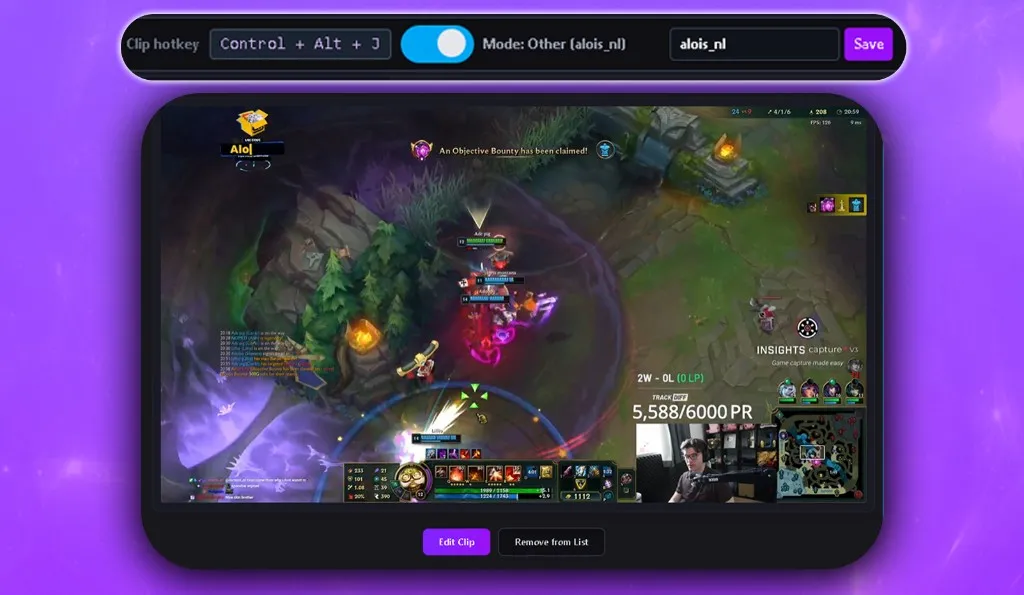
Instead of treating clipping as something you do hours later, Boltis works while you are streaming. You press one hotkey when something worth saving happens, and the clip is created through Twitch’s own clipping system. It does not rely on local recording, and it does not sit there eating frames in the background.
That already removes one of the biggest pain points. You are not trying to remember where something happened later. You are marking it in the moment when you already know it matters.
After the stream, the workflow stays simple:
- Review the clips you already saved
- Trim the moment
- Add captions if needed
- Format it for vertical
- Export and post
That is a much cleaner fit for what most people are actually looking for when they ask this question.
No watermark matters, but speed matters just as much
A lot of people frame this as if the watermark is the only problem.
It is not.
The watermark is usually just the most visible sign that the workflow is wrong. If a tool makes you fight through a slow, bloated, awkward process just to get one usable clip, then even a watermark-free export will not save it.
What you really want is a workflow that is fast enough to repeat.
That is where Boltis has an edge. Core clipping, captions, and export are free, and the workflow is built around getting from live moment to finished clip with as little friction as possible. Optional premium features add convenience, but the basic posting workflow is not locked behind a paywall.
That is a much better match for small streamers and growing creators than tools that hold the final export hostage.
What is the simplest way to use it?
If your goal is to keep things simple, the workflow looks like this:
- Go live on Twitch
- Run Boltis in the background
- Press your hotkey when something worth posting happens
- Open your saved clips after stream
- Trim, caption, format, export
- Post to Shorts, TikTok, or Reels
That is the full loop.
And if your main focus is short-form content, the natural next step is using the Twitch clip to vertical tool to shape those moments into something ready for mobile-first platforms.
This is also the same general idea behind How to Clip Twitch Highlights Without Scrubbing VODs: the less time you spend hunting through old footage, the more likely you are to actually publish consistently.
Why is this workflow easier to stick to?
The best clipping system is usually the one that asks the least from you after stream.
That is why “just edit it later” sounds good but often fails in practice. After you finish streaming, you are tired, you want to switch off, and the idea of opening a full editing timeline for one or two clips feels heavier than it should.
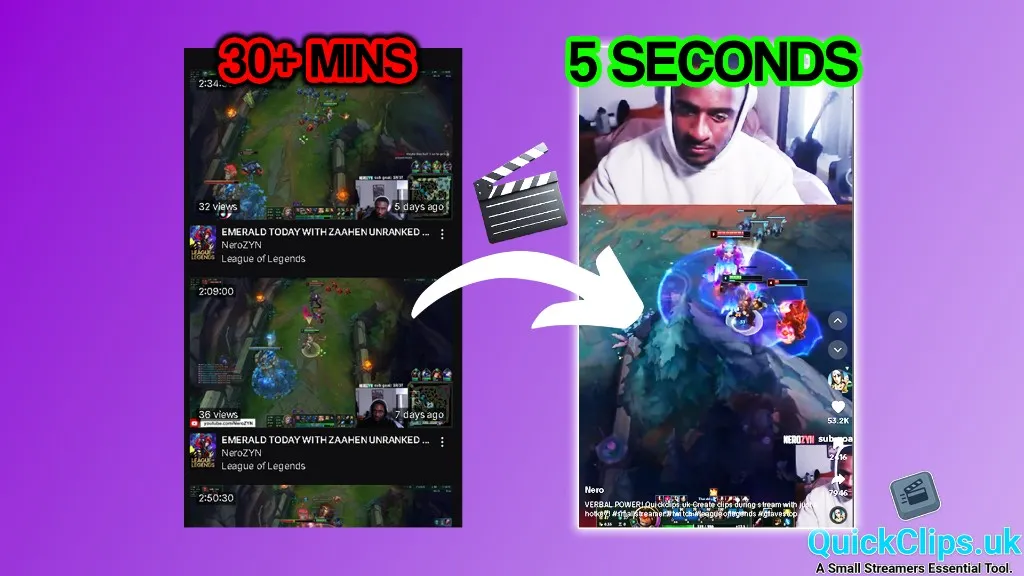
A lighter workflow changes that completely. If the clips are already there waiting for you, turning them into finished posts takes minutes instead of turning into a separate job.
That difference is bigger than it sounds. The streamers who post regularly are rarely the ones with the fanciest editing stack. They are the ones with the simplest repeatable system.
Frequently Asked Questions
Is there really a free Twitch clip editor with no watermark?
Yes, but you have to be careful about what “free” means.
A lot of editors are free to open, free to test, or free to preview. That does not always mean the final export is clean. In many cases, the watermark only appears when you are ready to save the finished clip.
That is why a Twitch-specific workflow makes more sense than a generic editor. You want the full path to stay usable, not just the first half of it.
Can I remove a watermark from an existing Twitch clip?
Sometimes, but it is usually a bad fix.
You can crop around it, zoom in, or try to hide it with reframing, but that often makes the final clip worse. You lose composition, you cut off parts of the gameplay, or the video starts to look cramped.
In most cases, the better move is to go back to the original clip and use a cleaner workflow from the start.
Why do so many free editors feel unusable for streamers?
Because most of them were not really built for streamers in the first place.
They are built to serve lots of different creator types, which means Twitch-specific pain points get ignored. Things like live clipping, vertical reframing for gameplay, fast turnaround, and not wanting to scrub VODs for an hour are not edge cases for streamers. They are the main workflow.
Is Boltis only useful if you stream all the time?
No. It is probably even more useful if you do not stream every day.
When you stream less often, each session matters more. You want to come away from that stream with as much usable content as possible. A workflow that helps you save moments in real time gives you more chances to get value from each session without adding a big editing burden afterwards.
Is Boltis free?
Yes. Core clipping, editing, captions, and export are free forever. There is no paywall to clip and post. Optional Premium adds convenience features like clip sorting, tags, and layout presets.
Does Boltis affect stream FPS?
No. Boltis does not record your screen locally. Clips are created server-side by Twitch using its official clip API, so there is zero FPS impact.
Ready to try it?
If you want the shortest path from live moment to finished clip, use a workflow designed for Twitch instead of forcing a generic editor to do a job it was never really built for.
Boltis keeps it simple: press a hotkey while you are live, save the moment immediately, clean it up afterwards, and export without a watermark. No VOD scrubbing, no editing marathon, and no paying just to remove someone else’s logo from your own content.