Best Free Twitch Clipping Software With No Subscription (2026)
Free Twitch clipping software with no subscription: genuinely free tools, no watermarks or paywalls, ranked for streamers who clip and post Shorts fast.
Quick answer
Boltis is a free Twitch clipping tool with no subscription. Press a hotkey while live and the last 60 seconds saves instantly through Twitch's clip API, with zero FPS impact. Core clipping, editing, and export are free forever, with 30 captions a month, with no watermark. Windows 10 and 11 only.
You searched “free.” Then you opened five tabs and found a free trial, a free clip with a watermark stamped across your face, a “free” plan that deletes your clips after three days, and a tool that wants $15 a month before you can actually post anything.
I’ve been there. So this is the honest version: the Twitch clipping software that’s actually free, with no subscription, ranked by how fast it gets a live moment from your stream onto TikTok or YouTube Shorts. I’ll tell you what each one is genuinely good at, and where the “free” has fine print.
The one-key version: Boltis saves your last 60 seconds the instant you press
Ctrl + Alt + H, then turns it into a vertical clip. Free forever, no watermark, no subscription. (Windows 10/11, and you do need to be live on Twitch, more on that below.)
What does “free” actually mean in this space?
Half the tools that rank for “free Twitch clipping software” aren’t free in the way you think. Before the list, here’s the fine print to watch for, because it’s the whole game:
- Free trial vs free forever. A 7-day trial isn’t free software. It’s a countdown.
- Watermarks. A logo burned into the corner of your clip screams “made with a free tool” and quietly tanks how serious your channel looks. This is the single most common catch.
- The paywall-to-publish move. You can make the clip free, but exporting it clean, or at full resolution, needs a subscription.
- Expiry. Some “free” tiers delete your clips after a few days if you don’t upgrade.
- FPS tax. A lot of clipping tools are screen recorders running in the background, eating frames while you’re trying to clutch.
Keep those five in mind and most “free” lists shrink fast.
Which free Twitch clipping software is genuinely free?
1. Boltis: best for clipping live and posting Shorts fast
Boltis works the opposite way to the AI tools further down this list. There’s no waiting for your VOD to process and no AI guessing what mattered. Something pops off, you tap your hotkey (Ctrl + Alt + H by default), and the last 60 seconds is saved as a Twitch clip instantly, before you’ve finished laughing. Then you open it, pick a split or fullscreen layout, drop in AI captions, and export a vertical 1080×1920 file ready for TikTok, Shorts, and Reels.
The reason it earns the top spot for this specific search (free, no subscription) is that it doesn’t play the usual games:
- Free forever for core clipping. Clip, edit, caption, export. No paywall to post. (There’s an optional Premium for convenience like sorting, tags, and layout presets, but you never hit a wall just to make and publish a clip.)
- No watermarks. No ads. Ever. Your clip is yours.
- Zero FPS impact. It doesn’t record your screen. It tells Twitch to save the moment using Twitch’s own clip API, so nothing runs in the background and nothing touches your game.
Full honesty, because that’s the point: Boltis is Windows 10/11 only, and because it uses Twitch’s clip system, you have to be live on Twitch when you press the key. It’s also indie software, so Windows may show a SmartScreen warning on install (there’s a one-page guide for that). If you stream on Twitch and want clean clips for free, those tradeoffs are easy. If you clip pre-recorded YouTube uploads or you’re on Mac, look further down.
A quick aside on why this exists: I built Boltis because I was the guy watching my own VODs at 1.5x, audio-only, during my 9-to-5, rewinding every time something made me laugh so I could clip it later. That whole evening-killing ritual is what the hotkey replaces.
Here are three clips captured and edited entirely in Boltis, watermark-free:
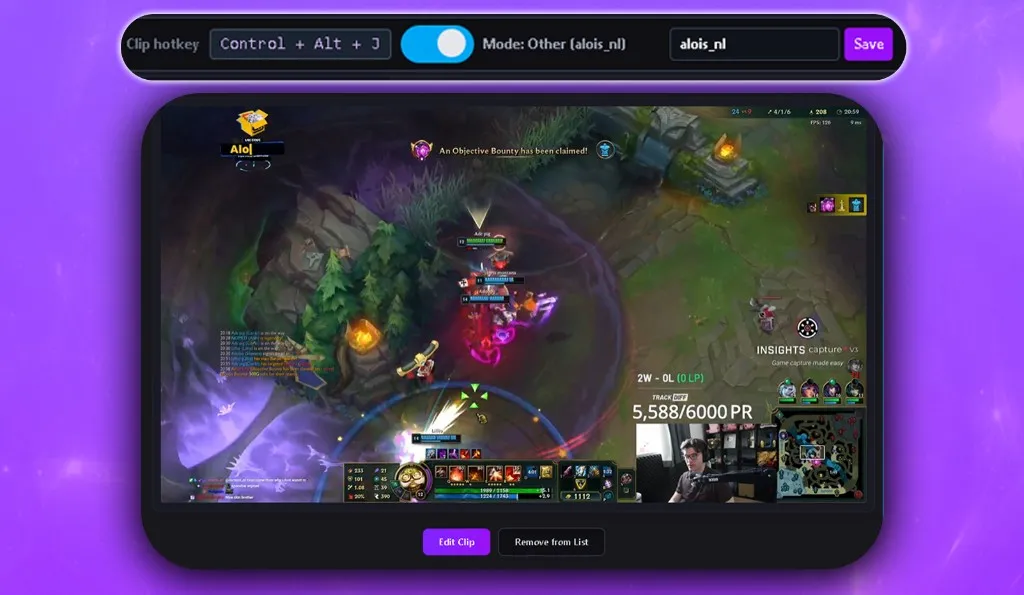
Best for: Twitch streamers who want to catch the moment as it happens and post a clean Short minutes later, without paying anyone.
2. Twitch’s built-in clip button: free, fine, and frustrating
The clip feature baked into Twitch is genuinely free, has no watermark, and needs no subscription. If all you want is to save a moment, it does that.
The catch is everything after saving. Twitch’s clip page gives you a horizontal clip and basically nothing else: no vertical reframing, no captions, no real editor. You’re saving raw material, then doing the actual short-form work somewhere else. And Twitch’s newer AI clipper that auto-picks highlights has a rough reputation among streamers, the kind of “it grabbed the dead air, not the play” results that get called auto-slop.
Best for: A quick manual save when you don’t care about repurposing it into a polished Short.
3. Medal.tv: free, all-in-one, but it records your machine
Medal is a real free option with a usable free tier. It buffers your gameplay so you can clip after the moment, has auto-clipping for a big game library, includes a built-in trim/text editor, and gives you instant share links. As a complete capture-to-share loop, it’s solid.
Two things to know: it’s a local recorder, so it’s using your CPU/GPU to capture (they do hardware-accelerated encoding to soften that), and it’s its own social ecosystem as much as a tool. That’s great if you want a community around your clips; less ideal if you just want a clean file to post elsewhere.
Best for: Gamers who want automatic capture across lots of games and don’t mind a local recorder.
4. OBS Studio: free, powerful, and the most manual
OBS is free, open-source, no watermark, no subscription, forever. Its Replay Buffer can save the last chunk of action on a hotkey, which is the closest OBS gets to “clipping.”
But OBS is a full broadcasting/recording suite. Even with the replay buffer, you’re typically left with footage you trim and reframe to vertical in a separate editor. It’s the most capable tool here and the most work. If you’re searching “free clipping software,” that’s usually the opposite of what you want.
Best for: Streamers who already run OBS and are happy editing clips by hand.
5. Outplayed: free, but ad-supported
Outplayed auto-captures your best moments across a huge game library and is free to use. The honest footnote: the free app is ad-supported, and removing ads pushes you toward premium. It’s also a local capture app via the Overwolf platform.
Best for: Players who want hands-off auto-capture across many games and can live with ads.
Also worth a mention: Xbox Game Bar is already on your Windows PC, costs nothing, and can grab quick recordings and screenshots, but it’s bare-bones, with little in the way of highlight or vertical-export features. Fine as a zero-install fallback.
If you still need the full broadcast file for archiving, see our guide on Twitch download: clips and VODs.
Are the “free” AI clippers actually free?
You’ll see Eklipse and OpusClip in a lot of “free Twitch clipping” lists, so let’s be fair about them. They’re capable tools, just not really free for publishing.
Both run on a freemium model: a free tier to test, then a subscription for anything you’d actually post. OpusClip’s free plan, for example, gives you about 60 minutes of processing a month, watermarks every export, and deletes your clips after a few days. A watermark-free, usable workflow starts around $15/month and climbs from there. Eklipse follows the same shape: a limited, watermarked free tier with the good features behind a paid plan.
There’s a deeper mismatch beyond price, though. These tools work by letting AI guess your best moments after your stream is over. Sometimes it nails it; often it clips the lull right before the play, or the play with none of the reaction. If you searched “no subscription,” you almost certainly don’t want to also pay in time, reviewing AI picks and throwing away the bad ones, for the privilege.
That’s the whole reason Boltis exists: you already know the moment when it happens. You don’t need a model to find it for you after the fact.
Quick comparison
| Tool | Free forever? | Watermark | Subscription to publish? | How you clip | FPS impact |
|---|---|---|---|---|---|
| Boltis | Yes (core) | Never | No | You press a hotkey, live | None (Twitch API) |
| Twitch clip button | Yes | No | No | Manual, horizontal only | None |
| Medal.tv | Free tier | No | Optional | Auto + manual, records locally | Some (local) |
| OBS Studio | Yes | No | No | Replay buffer, you edit | Some (local) |
| Outplayed | Yes (with ads) | No | Optional (removes ads) | Auto-capture, records locally | Some (local) |
| Eklipse | Limited free tier | On free tier | Yes, for real use | AI guesses after the VOD | Cloud |
| OpusClip | Limited free tier | On free tier | Yes (~$15/mo+) | AI guesses from your video | Cloud |
Competitor pricing and free-tier limits as of mid-2026 and change often, so check their sites for the latest.
So which free clipper should you actually use?
It comes down to what kind of creator you are:
- You stream on Twitch and want clean Shorts fast, for free → Boltis. It’s the only one here that captures the moment live, exports vertical and watermark-free, and never asks for a card.
- You only need to save the odd raw moment → Twitch’s built-in clip button is fine.
- You want auto-capture across many games and like a built-in community → Medal.
- You want total control and don’t mind editing → OBS.
- You clip pre-recorded video or you’re on Mac → an AI clipper like OpusClip, knowing you’ll likely pay to drop the watermark.
If you came here because the paid AI tools felt like a lot of money to clip your own stream: they are, and you don’t need them. You were live. You saw the moment. The fastest free way to keep it is one key.
Free forever · No watermarks · No subscription · You pick the moment, not AI.
Windows 10/11. You’ll need to be live on Twitch to clip, which is how it captures the moment server-side with zero FPS hit.